Managing distribution lists in Google Workspace is usually straightforward: you either make a group Private (internal only) or Public (anyone on the internet can post).
But what if you need a middle ground?
Recently, we faced a common challenge: We had an internal project group that needed to receive emails from a specific external partner, but we didn’t want to set the group to “Public” and open the door to spam or unauthorized senders.
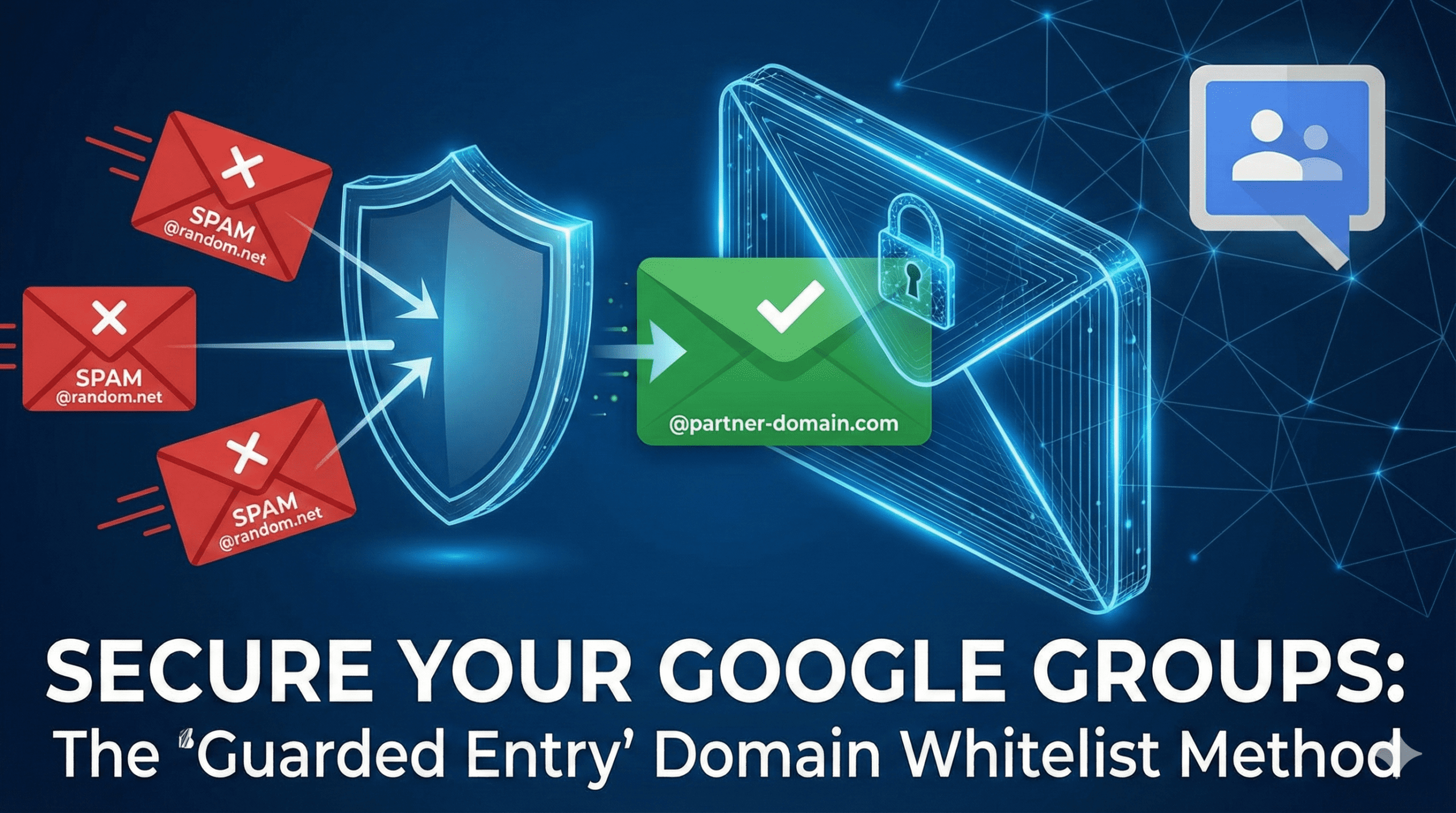
Since Google Groups doesn’t have a simple “Allow specific external domains” checkbox, we implemented a workaround using Content Compliance rules. Here is how we achieved a “Guarded Entry” setup that allows specific partners in while keeping everyone else out.
The Challenge
- Standard Setting: If you set “Who can post” to Organization Members, your partners get bounced.
- Public Setting: If you set it to Anyone on the web, your group gets flooded with spam.
The Solution: The “Open Door, Strong Bouncer” Approach
To solve this, we used a two-step process:
- Open the Group: We technically allow “Internet” posting at the group level.
- Add a Guard: We use a Compliance Rule to block everyone at the gate, except for the domains we explicitly trust.
Step 1: Adjust Group Settings
First, navigate to Google Groups > Group Settings.
- Under “Who can post”, select “Anyone on the web”.
Note: It sounds risky, but Step 2 locks it down immediately.
Step 2: Create a Content Compliance Rule
Next, go to the Google Admin Console > Apps > Gmail > Compliance.
We created a rule that acts as a filter for that specific group address.
The Logic:
- Target: Emails sent TO
[your-group]@yourcompany.com
- Condition: If the Sender does NOT match our whitelist.
- Action: Reject the message.
The Regex (Regular Expression) We Used: To define our whitelist, we used a simple Regex pattern in the “Advanced content match” section: (@partner-domain\.com|@our-company\.co\.jp)
This expression tells the system: “If the sender is NOT from partner-domain.com AND not from our-company.co.jp, then block them.”
The Result
This setup gives us the best of both worlds:
- Security: Random external senders and spammers are automatically rejected.
- Collaboration: Our trusted partners can email the group effortlessly, just like internal employees.
- Flexibility: We can add new partners to the whitelist at any time by simply updating the Regex.
If you are a Google Workspace admin struggling to manage external collaboration without compromising security, we highly recommend trying this “Guarded Entry” method!
Questions about our setup? Feel free to reach out to the System team.